Configure products, variants, and add-ons
Set up modifier groups and option sets, then link them to products for staff to use on the till.
Understand variants, modifiers, and option sets
Variants are fixed sizes or styles of one product with their own price (for example Pint vs Bottle). Modifier groups are reusable add-on choices for specific items (for example burger toppings). Option sets are shared choice groups you link to many products (for example Size on all hot drinks).
Create modifier groups
Go to Point of Sale, then Settings, then Modifiers. Click Add Modifier Group. Name the group, set min and max selections, and mark Required or Auto Prompt on Till if staff should always choose. Add options with names and optional price adjustments (+£). Save the group.
Tip: Modifier groups cannot be created from inside the product form. Create them on the Modifiers screen first, then link them on each product.
Create option sets
Go to Settings, then Option Sets, and click Add Option Set. Name the set, choose Single Choice or Multiple Choice, set selection rules, and add options with optional price adjustments. Turn on Auto Prompt on Till when staff should be asked at checkout.
Link groups and sets to products
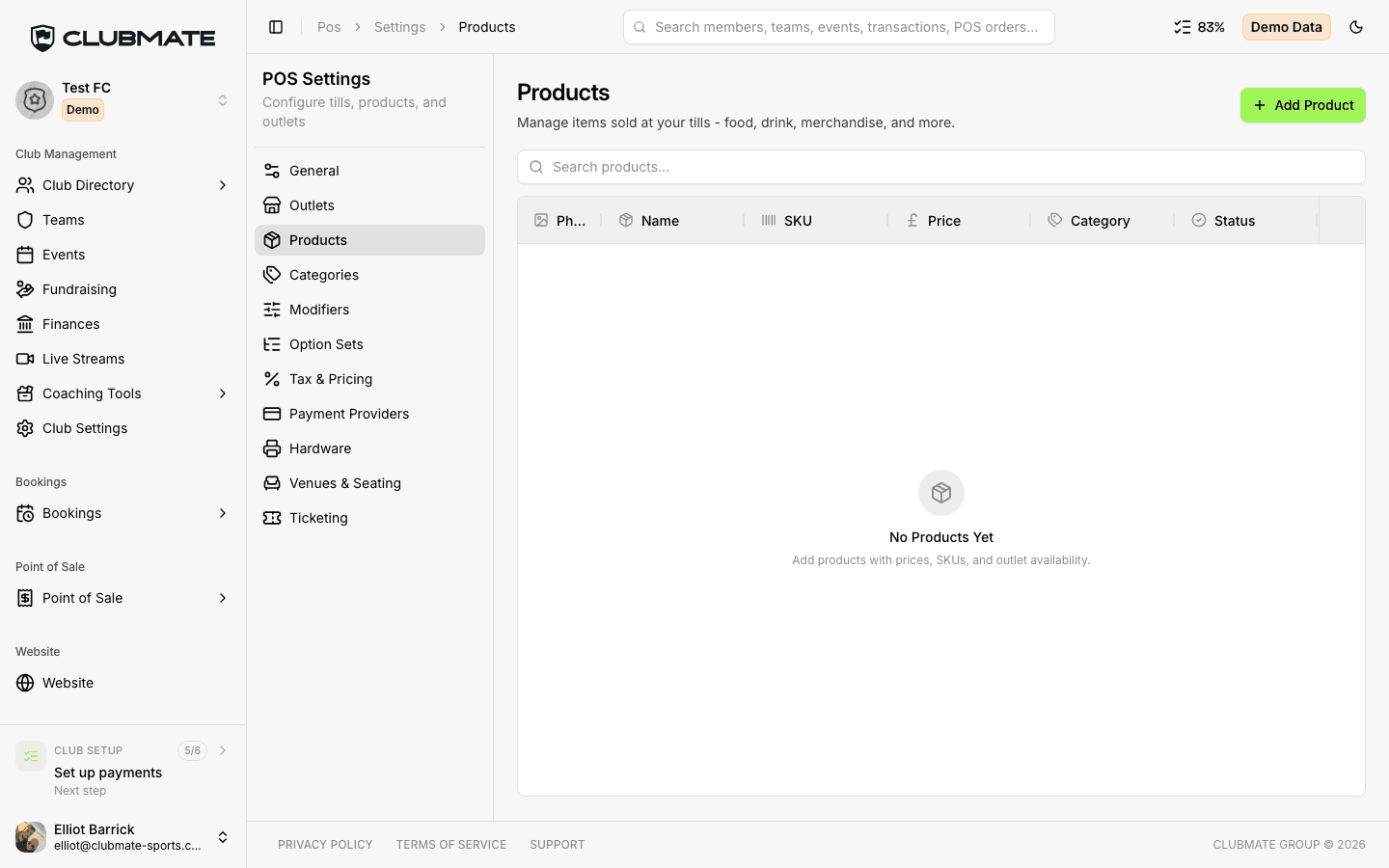
Open each product under Settings, then Products. Under Modifier Groups and Option Sets, link the groups you created. Inactive or unlinked groups will not appear on the till.
Set tax on products when needed
You can set an optional Tax Rate (%) on each product. Tax is calculated when an order is completed and appears in Sales order details. If a product has no tax rate set, no tax is applied to that line at checkout today.
Troubleshoot missing till products
If products do not appear on the till, check that you selected the correct outlet, the outlet is active, and products are active and scoped to that outlet or All Outlets. Refresh or re-open the Till after adding new products.