Your first steps in Clubmate
Sign in, pick your club, and learn where to find members, teams, and day-to-day tools.
Sign in to Clubmate
Open https://app.clubmate-sports.co.uk and enter the email and password your club gave you. If you forgot your password, use Forgot password on the login screen to reset it by email.
Choose your club
If you belong to more than one club, use the club switcher at the top of the sidebar to choose which club you are working in. Clubmate remembers your last club for next time.
Explore the main navigation
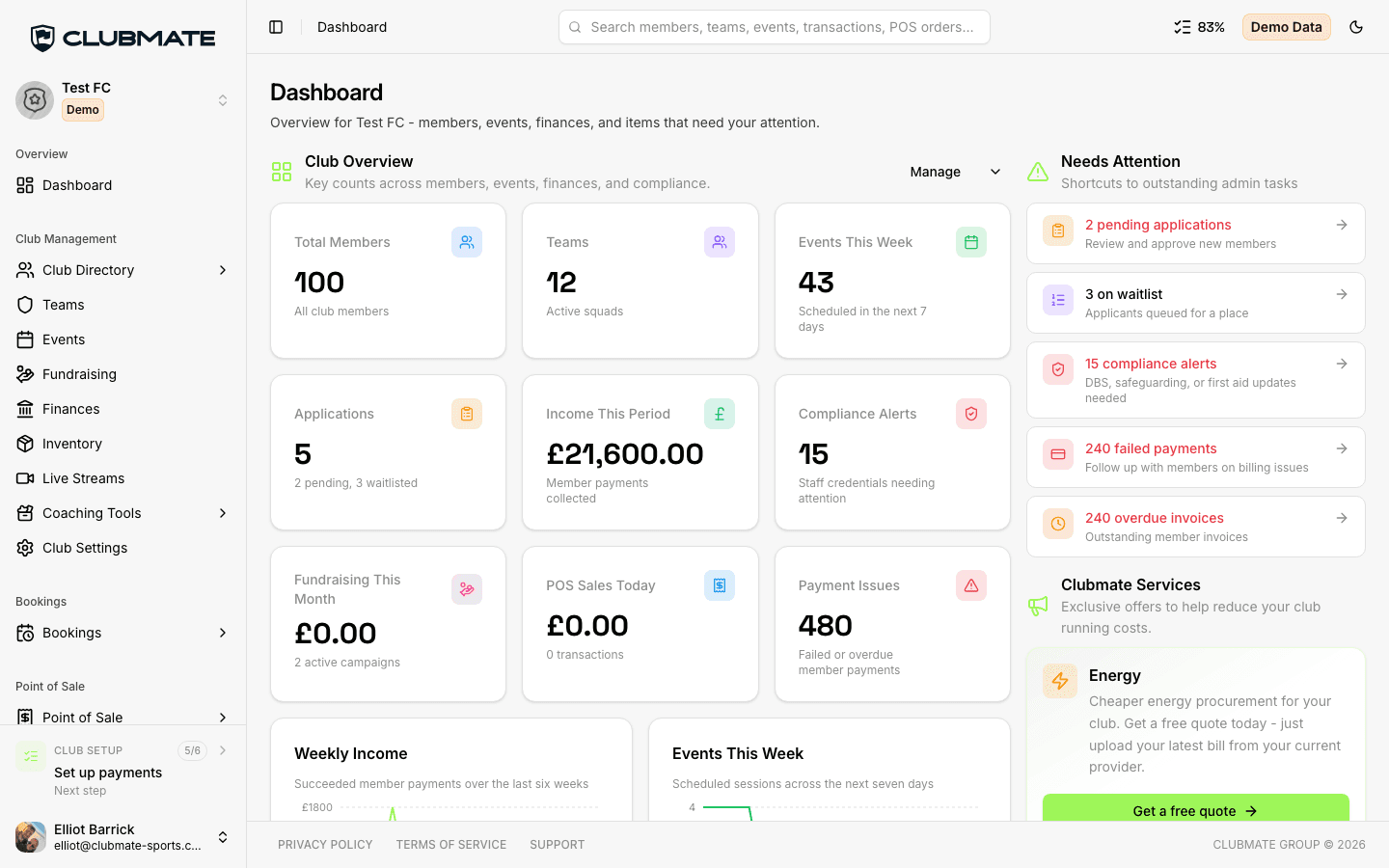
Open Dashboard from the sidebar for your admin overview, then use the menu to move between areas such as Club Directory, Teams, Events, Finances, and Point of Sale. What you see depends on your role at the club.
Find members and records
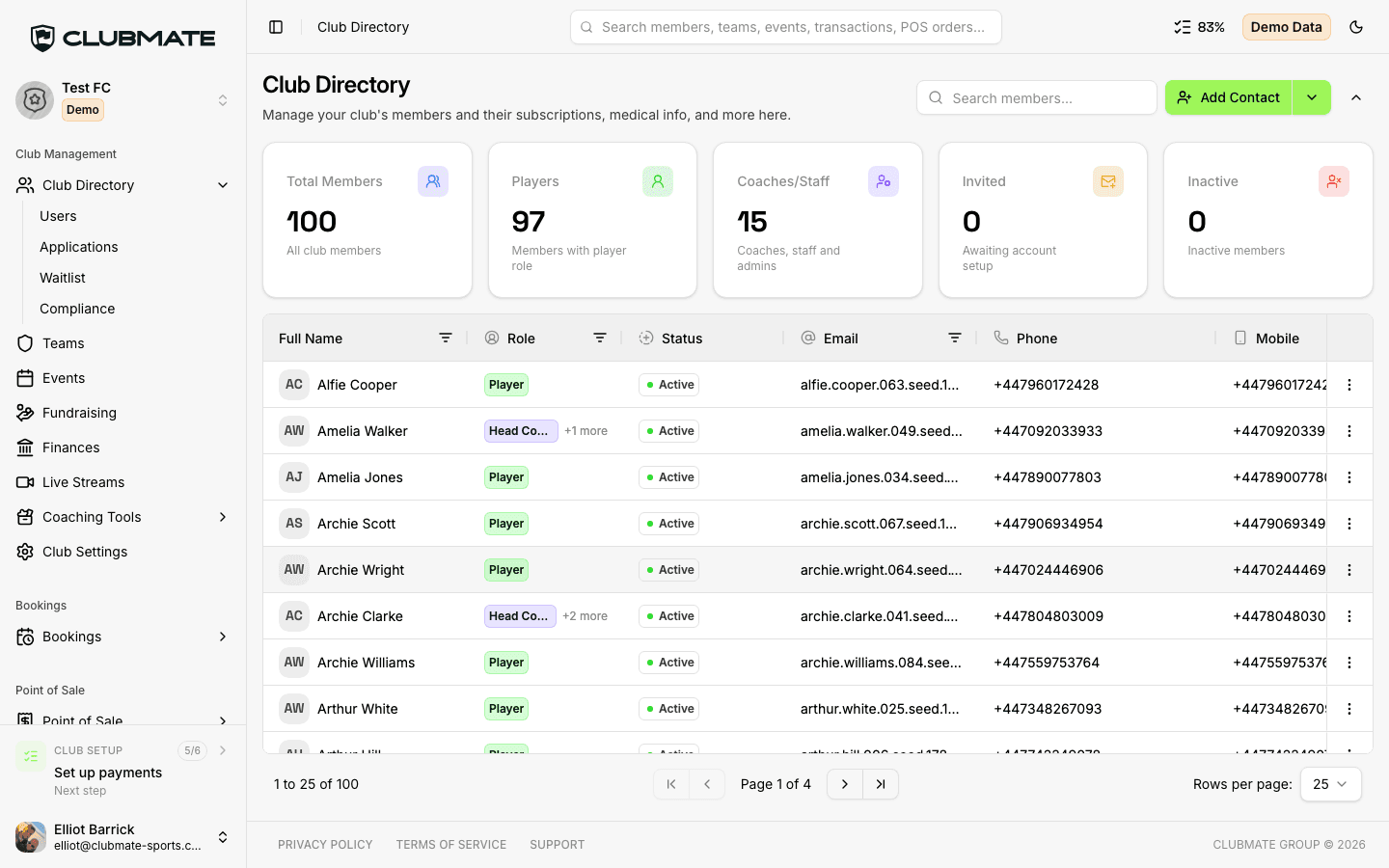
Open Club Directory in the sidebar to search members, view roles and status, and open profiles. Admins and staff use this area for registrations, contact details, and club records.
Use a supported browser on any device
Clubmate runs in modern web browsers on desktop, phone, and tablet. Keep your browser up to date for the best experience. No separate app install is required.
Tip: If a page looks wrong, try refreshing or signing out and back in before contacting support.